Login with Facebook
To enable Facebook Auth for your project, you need to set up a Facebook OAuth application and add the application credentials to your Supabase Dashboard.
Overview
Setting up Facebook logins for your application consists of 4 parts:
- Create and configure a Facebook Application on the Facebook Developers Site
- Configure email permissions in your Facebook app (required for Supabase Auth)
- Add your Facebook keys to your Supabase Project
- Add the login code to your Supabase JS Client App
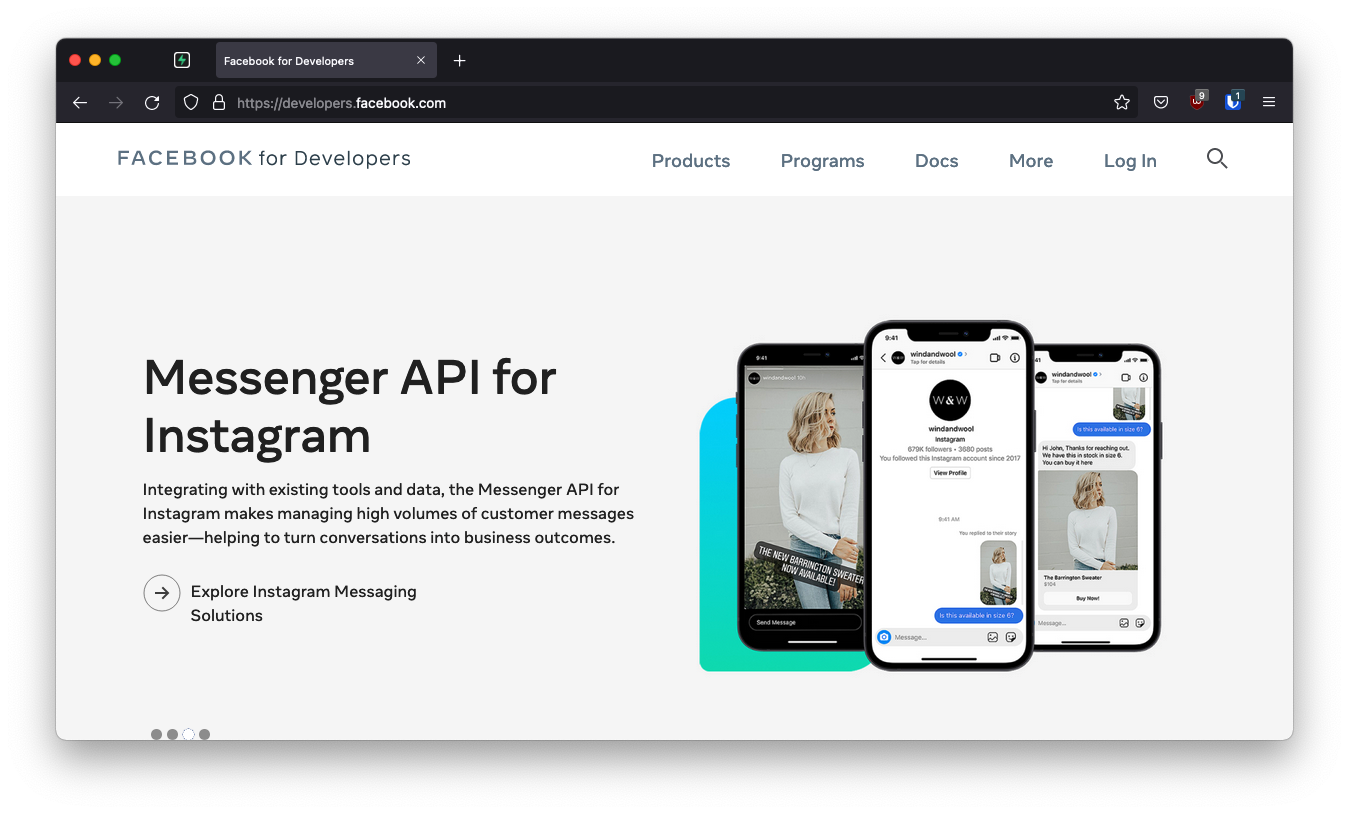
Access your Facebook Developer account
- Go to developers.facebook.com.
- Click on
Log Inat the top right to log in.
Create a Facebook app
- Click on
My Appsat the top right. - Click
Create Appnear the top right. - Select your app type and click
Continue. - Fill in your app information, then click
Create App. - This should bring you to the screen:
Add Products to Your App. (Alternatively you can click onAdd Productin the left sidebar to get to this screen.)
The next step requires a callback URL, which looks like this: https://<project-ref>.supabase.co/auth/v1/callback
- Go to your Supabase Project Dashboard
- Click on the
Authenticationicon in the left sidebar - Click on
Sign In / Providersunder the Configuration section - Click on Facebook from the accordion list to expand and you'll find your Callback URL, you can click
Copyto copy it to the clipboard
Local development
When testing OAuth locally with the Supabase CLI, ensure your OAuth provider is configured with the local Supabase Auth callback URL:
http://localhost:54321/auth/v1/callback
If this callback URL is missing or misconfigured, OAuth sign-in may fail or not redirect correctly during local development.
See the local development docs for more details.
For testing OAuth locally with the Supabase CLI see the local development docs.
Set up Facebook login for your Facebook app
From the Add Products to your App screen:
- Click Setup under Facebook Login
- Skip the Quickstart screen. Instead, in the left sidebar, click Settings under Facebook Login
- Enter your callback URI under Valid OAuth Redirect URIs on the Facebook Login Settings page
- Click Save Changes at the bottom right
Your callback URI follows this pattern: https://<project-ref>.supabase.co/auth/v1/callback
You can find your project's callback URI in the Supabase Dashboard under Authentication > Providers > Facebook.
Configure email permissions (required)
This step is required for Supabase Auth to work correctly. Without email permissions, Facebook will not return the user's email address, which may cause authentication failures or incomplete user profiles.
You must configure the email permission in your Facebook app's Use Cases:
- In your Facebook app dashboard, click Use Cases under
Build Your App - Find Authentication and Account Creation and click the Edit button on the right
- Verify that both
public_profileandemailshow status Ready for testing - If
emailis not listed, click the Add button next to it
You can verify the permissions are set correctly by checking that both public_profile and email appear with a green check mark or "Ready for testing" status.
Copy your Facebook app ID and secret
- Click
Settings / Basicin the left sidebar - Copy your App ID from the top of the
Basic Settingspage - Under
App SecretclickShowthen copy your secret - Make sure all required fields are completed on this screen.
Enter your Facebook app ID and secret into your Supabase project
- Go to your Supabase Project Dashboard
- In the left sidebar, click the
Authenticationicon (near the top) - Click on
Providersunder the Configuration section - Click on Facebook from the accordion list to expand and turn Facebook Enabled to ON
- Enter your Facebook Client ID and Facebook Client Secret saved in the previous step
- Click
Save
You can also configure the Facebook auth provider using the Management API:
1# Get your access token from https://supabase.com/dashboard/account/tokens2export SUPABASE_ACCESS_TOKEN="your-access-token"3export PROJECT_REF="your-project-ref"45# Configure Facebook auth provider6curl -X PATCH "https://api.supabase.com/v1/projects/$PROJECT_REF/config/auth" \7 -H "Authorization: Bearer $SUPABASE_ACCESS_TOKEN" \8 -H "Content-Type: application/json" \9 -d '{10 "external_facebook_enabled": true,11 "external_facebook_client_id": "your-facebook-app-id",12 "external_facebook_secret": "your-facebook-app-secret"13 }'Add login code to your client app
Make sure you're using the right supabase client in the following code.
If you're not using Server-Side Rendering or cookie-based Auth, you can directly use the createClient from @supabase/supabase-js. If you're using Server-Side Rendering, see the Server-Side Auth guide for instructions on creating your Supabase client.
When your user signs in, call signInWithOAuth() with facebook as the provider:
1async function () {2 const { , } = await ..({3 : 'facebook',4 })56 if () {7 .('Error signing in with Facebook:', .)8 return9 }1011 // The user will be redirected to Facebook for authentication12}For a PKCE flow, for example in Server-Side Auth, you need an extra step to handle the code exchange. When calling signInWithOAuth, provide a redirectTo URL which points to a callback route. This redirect URL should be added to your redirect allow list.
In the browser, signInWithOAuth automatically redirects to the OAuth provider's authentication endpoint, which then redirects to your endpoint.
1await ..({2 ,3 : {4 : `http://example.com/auth/callback`,5 },6})At the callback endpoint, handle the code exchange to save the user session.
Create a new file at app/auth/callback/route.ts and populate with the following:
app/auth/callback/route.ts
1import { NextResponse } from 'next/server'2// The client you created from the Server-Side Auth instructions3import { createClient } from '@/utils/supabase/server'45export async function GET(request: Request) {6 const { searchParams, origin } = new URL(request.url)7 const code = searchParams.get('code')8 // if "next" is in param, use it as the redirect URL9 let next = searchParams.get('next') ?? '/'10 if (!next.startsWith('/')) {11 // if "next" is not a relative URL, use the default12 next = '/'13 }1415 if (code) {16 const supabase = await createClient()17 const { error } = await supabase.auth.exchangeCodeForSession(code)18 if (!error) {19 const forwardedHost = request.headers.get('x-forwarded-host') // original origin before load balancer20 const isLocalEnv = process.env.NODE_ENV === 'development'21 if (isLocalEnv) {22 // we can be sure that there is no load balancer in between, so no need to watch for X-Forwarded-Host23 return NextResponse.redirect(`${origin}${next}`)24 } else if (forwardedHost) {25 return NextResponse.redirect(`https://${forwardedHost}${next}`)26 } else {27 return NextResponse.redirect(`${origin}${next}`)28 }29 }30 }3132 // return the user to an error page with instructions33 return NextResponse.redirect(`${origin}/auth/auth-code-error`)34}When your user signs out, call signOut() to remove them from the browser session and any objects from localStorage:
1async function () {2 const { } = await ..()34 if () {5 .('Error signing out:', .)6 return7 }89 // User has been signed out10}Testing your integration
Facebook apps start in Development mode, which has the following limitations:
- Only users with a role on the app (administrators, developers, testers) can authenticate
- Other users will see an "App Not Setup" error when trying to log in
To add test users:
- Go to developers.facebook.com and select your app
- Navigate to App Roles > Roles
- Add users as Testers, Developers, or Administrators
- Users must accept the invitation from their Facebook notification settings
Development mode is sufficient for local development and testing. You only need to submit for App Review when you're ready to allow any Facebook user to authenticate with your app.
Going live with app review
Before your app can be used by the general public, you need to complete Facebook's App Review process:
-
Complete App Settings: In your Facebook app's Settings > Basic, fill in all required fields including:
- App Icon
- Privacy Policy URL
- Terms of Service URL (if applicable)
- App Domain
-
Request Permissions: Navigate to App Review > Permissions and Features and request the permissions you need:
public_profile- Usually pre-approvedemail- Requires verification that your app needs email access
-
Submit for Review: Click Submit for Review and provide:
- Detailed instructions for how Facebook reviewers should test your login flow
- A screencast video demonstrating the Facebook Login feature
- Explanation of how user data will be used
-
Wait for Approval: Facebook typically reviews apps within 1-5 business days
If you only need basic authentication (name and profile picture), you may not need full App Review. Apps requesting only public_profile and email with the "Authenticate and request data from users with Facebook Login" use case can often go live without a detailed review.
For more details, see the Facebook App Review documentation.
Troubleshooting
"App not setup" error
This error occurs when a user without a role on your app tries to log in while the app is in Development mode.
Solution: Either add the user as a tester in your Facebook app settings, or complete the App Review process to make your app available to all users.
User's email not returned
Facebook only returns the email address if:
- The user has a confirmed email on their Facebook account
- Your app has been granted the
emailpermission - The
emailpermission is marked as "Ready for testing" in Use Cases > Authentication and Account Creation
Solution: Check that the email permission is properly configured in your Facebook app's Use Cases settings.
"Redirect URI mismatch" error
This error indicates the callback URL configured in Facebook doesn't match the one used during authentication.
Solution: Verify that the Valid OAuth Redirect URIs in your Facebook app settings exactly matches https://<project-ref>.supabase.co/auth/v1/callback. Make sure there are no trailing slashes or typos.
Login works in development but not production
If login works locally but fails in production, check:
- Your production URL is added to Valid OAuth Redirect URIs in Facebook
- The App ID and Secret in your Supabase dashboard match your Facebook app
- Your Facebook app is in Live mode (not Development mode)